



Navigating the digital world often brings questions of privacy and data security. Many users turn to incognito mode, believing it offers an impenetrable shield for their online activities. This article will demystify incognito browsing, expose common misconceptions, and provide practical steps on how to see and delete incognito history, ensuring you have a clearer picture of your digital footprint.
How to See Incognito History
Checking Browser Settings
While incognito mode prevents your browser from saving local browsing history, it doesn’t entirely erase all traces of your online activity. To properly see incognito history, one might first consider examining browser-level settings that don’t directly store incognito session data but might reveal related activity.
For instance, if you’re using Chrome, the incognito mode doesn’t save your browsing history directly, so you won’t find a dedicated “incognito history” log in the typical browser history section. However, some system-level logs or network activity logs outside the browser might still retain information that could help trace certain activities.
Using Extensions for Tracking
While incognito mode hides your browsing from the local browser history, specialized extensions can sometimes offer a way to track activity, though this is less common and often requires prior installation. There are certain parental control apps or monitoring extensions designed to log all browsing activity on a device, regardless of whether you use incognito mode or a regular tab. These extensions operate at a deeper system level, bypassing the browser’s incognito mode feature that prevents saving browsing history. Therefore, if such an extension is present, it might be possible to see incognito history by reviewing its logs, even if the browser doesn’t save it.
Alternative Methods to Trace Activity
Even when you use incognito mode, various alternative methods exist to trace online activity beyond what your browser displays. One primary method involves examining the DNS cache on your device. When you visit websites, your computer stores DNS records to speed up future access.
Flushing the DNS cache can clear this temporary record, but before that, it can reveal websites you visit, even those accessed during an incognito session. Your ISP also maintains logs of your browsing activity, as incognito mode doesn’t hide your IP address or encrypt your connection. Parental control apps or network monitoring tools on a shared Wi-Fi network can also see your browsing history, providing a different avenue to check incognito history.
How to Delete Incognito History


Clearing Browser Cache and Data
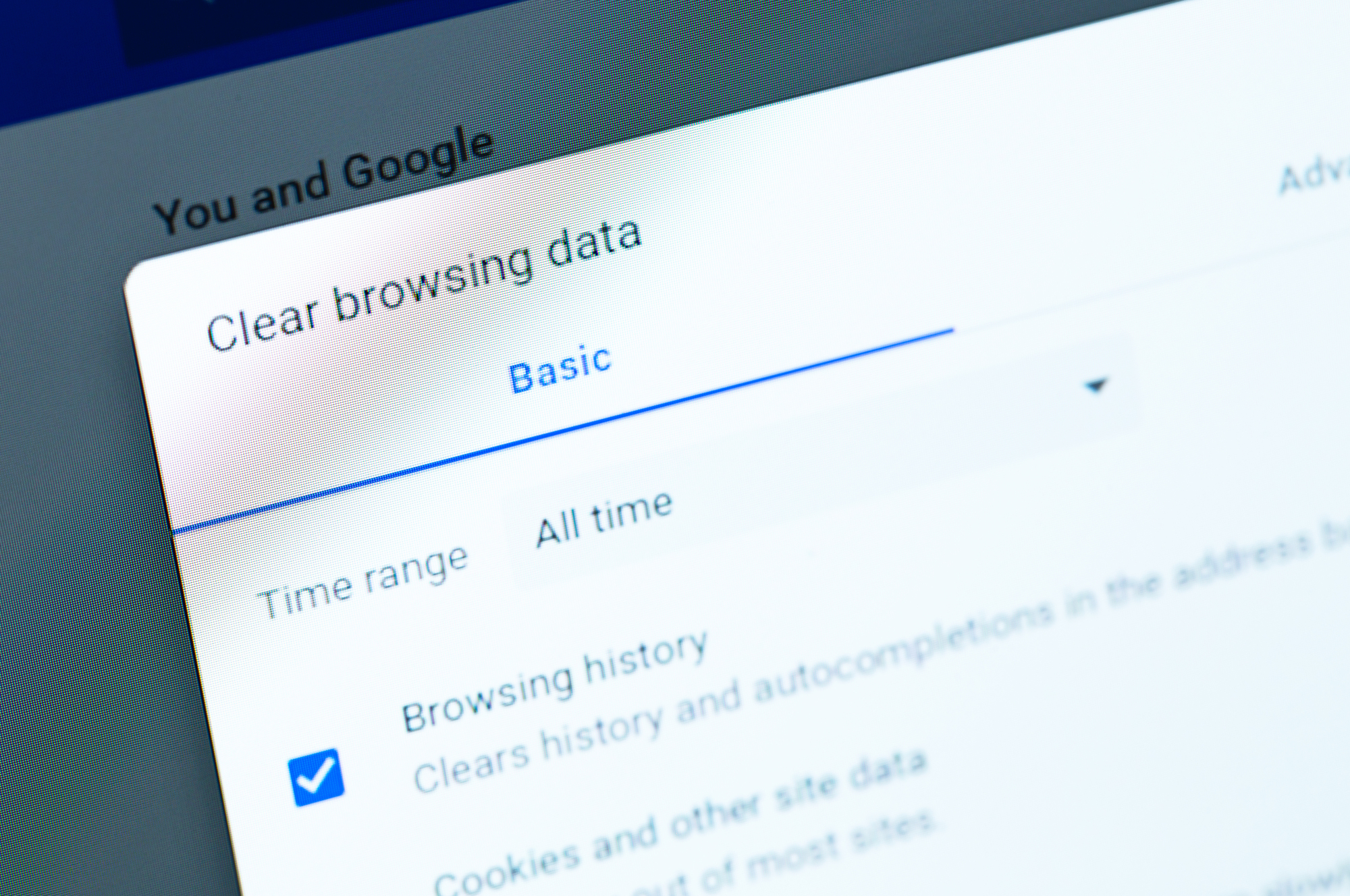
To effectively delete incognito history, beyond simply closing an incognito window, one crucial step involves clearing your browser’s cache and data. While incognito mode prevents the browser from saving browsing history locally, residual data might still linger in the broader browser cache. By navigating to your browser settings, whether you use Chrome on Android or an iPhone – and selecting options to clear browsing data, you can remove stored cookies, cached images, and site data. This action helps to delete any potential fragments of an incognito session that might remain on your device, ensuring a more thorough removal.
Using Third-party Tools
For users looking to comprehensively delete incognito history, employing third-party tools can be an effective strategy. While an incognito tab doesn’t directly save browsing history, specialized cleaning software can delve deeper into your system to remove any cached information or temporary files that might inadvertently trace your browsing activity. These tools often offer advanced scanning capabilities to identify and delete data remnants that browser-based clearing methods might miss.
However, exercising caution is important when choosing such software to ensure it is reputable and doesn’t compromise your privacy further, particularly if you aim to hide your browsing from external observation.
Steps for Different Browsers
The process to delete incognito history, or more accurately, the residual data from incognito sessions, varies slightly depending on the browser you use. For Chrome, accessing the history section and clearing all browsing data after an incognito session is key, remembering that incognito mode hides specific session data but doesn’t globally sanitize your system. On an iPhone or Android device, similar steps apply within the respective browser settings.
The core idea is to clear the main browser’s cache and cookies, as incognito mode doesn’t save directly to it, but general browser data cleaning contributes to deleting any potential overlaps.
What is Incognito Mode?
Incognito mode, available in browsers like Chrome, is a privacy feature designed to offer a temporary, isolated browsing session. When you use incognito mode, your browser doesn’t save your browsing history, cookies, or site data locally on your device. This means that after you close all incognito windows, there will be no readily available record of the websites you visit or your browsing activity in your regular browser history. It’s a useful tool for momentary privacy on a shared device.
Common Misconceptions about Privacy
Despite its name, incognito mode doesn’t provide complete anonymity or an encrypted connection. Many users mistakenly believe that incognito mode hides their IP address, making them untraceable. In reality, incognito doesn’t hide your IP address from websites you visit, your internet service provider (ISP), or your employer. Your ISP can still see your browsing activity, and your network administrator can still trace your online actions, even if your browser doesn’t save a local record.
Why Users Choose Incognito Browsing
Users often choose incognito browsing for various reasons, primarily for local privacy. For instance, they might use incognito mode to sign into multiple accounts simultaneously on a single website or to browse sensitive information without it appearing in their regular browsing history. It’s also frequently used when sharing a device, as it prevents other users of that device from easily seeing your browsing history, cookies, or form data from that specific incognito session.
Protecting Your Privacy while Browsing
Using a VPN for Enhanced Security
To genuinely hide your browsing and protect your privacy, especially from entities like your ISP, using a VPN (Virtual Private Network) is paramount. While incognito mode doesn’t hide your IP address or encrypt your connection, a VPN does both, creating a secure tunnel for your browsing activity. This means your ISP can’t see your browsing history, and websites you visit perceive the VPN’s IP address instead of your real one. When you use a VPN, even if an incognito window is open, the enhanced security protects your browsing activity from being easily traced, offering a higher level of anonymity than incognito mode alone.
Best Practices to Hide Your Browsing
Beyond using a VPN, several best practices can further help hide your browsing. Regularly flushing the DNS cache on your device is a smart move, as DNS records can reveal websites you visit, even those accessed in an incognito session. Moreover, it’s wise to limit the use of public Wi-Fi without a VPN, as these networks are often less secure. Being aware of parental control apps or browser extensions that track browsing activity, even if incognito mode prevents local saving, is also crucial. These combined efforts create a more robust privacy posture, extending well beyond the capabilities of a simple incognito tab.
Data Retention Policies
To effectively protect your privacy, it’s essential to have a clear picture of data retention policies, particularly concerning your ISP and various online services. While incognito mode doesn’t save your browsing history locally, your ISP maintains logs of your browsing activity for a certain period, as incognito doesn’t hide your IP address. This means your ISP can see your browsing history, irrespective of whether you use an incognito window. Recognizing these policies helps in making informed decisions about using a VPN to encrypt your connection and minimize the data that can be traced back to you, adding a layer of privacy beyond what incognito mode offers.